DevOps وأدوات
متوسط
TVSaverLines v1.0.0 — TV Burn-in Protection Utility
نُشر منذ 6 أشهر · 288 · 0
حول هذا المشروع
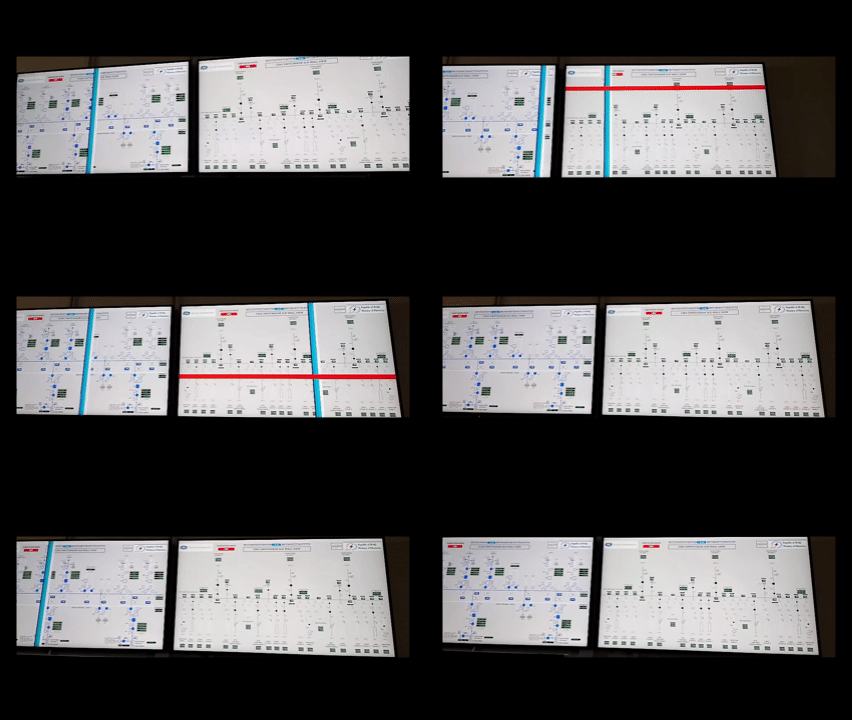
A lightweight Windows utility that protects a secondary TV monitor from burn-in by sweeping colored lines across the screen on a schedule — without interrupting your work on the primary display.
Built for 24/7 setups where a TV runs as an extended display for years at a time.
How It Works
When triggered by Windows Task Scheduler, the app opens a fully transparent, always-on-top window over the secondary monitor and sweeps one or two colored lines across the screen for a configurable duration, then silently exits. Your primary monitor and active applications are never interrupted.
The Full Spectrum vertical line (Black → Red → Green → Blue → White bands) exercises every RGB subpixel type in a single pass — the most effective pattern for burn-in prevention.
Features
🎨 5 vertical line color schemas — Full Spectrum, Cool, Warm, Soft, Single Color
↔️ Bidirectional sweep — alternates Left→Right and Right→Left each pass for even coverage
🌅 Smooth fade-in / fade-out — 1.5 s ease on both ends, no jarring pop-in
🖥️ Targets secondary monitor only — primary screen and focus are never touched
⏱️ Configurable schedule — every 2, 4, 6, 8, or 10 hours via Task Scheduler
⏳ Configurable duration — 10, 20, 30, 60, or 120 seconds per pass
🎨 10 horizontal line colors — Red, Orange, Yellow, Green, Cyan, Blue, Purple, White, Pink, Lime
🔁 Line mode — both lines (vertical + horizontal) or vertical only
🧪 Live test preview — test on Main or Second screen directly from the dialog
💾 Single .exe, no installer — settings saved to %APPDATA%\TVSaverLines\config.ini
📋 Task Scheduler integration — one click creates the scheduled task automatically
Usage
First run — double-click the .exe to open the configuration dialog:
Set how often to run (every N hours)
Choose a vertical line schema and horizontal line color
Pick line mode and sweep direction
Set the duration per pass
Click Save && Schedule — the Task Scheduler entry is created automatically
From that point on, the app runs silently in the background on the chosen schedule. No tray icon, no background process — each scheduled trigger launches the exe, runs one pass, and exits.
To change settings — just double-click the .exe again at any time.
Launch Modes
Command Action
TVSaverLines.exe Opens the configuration dialog
TVSaverLines.exe /run Runs one animation pass on the secondary monitor (called by Task Scheduler)
TVSaverLines.exe /test 1 Test preview on the main screen
TVSaverLines.exe /test 2 Test preview on the secondary screen
Build
Single .cpp file — no dependencies beyond the Windows SDK.
MSVC (x64 Native Tools Command Prompt):
cl /EHsc /O2 /DUNICODE /D_UNICODE TVSaverLines.cpp ^
user32.lib gdi32.lib shell32.lib ^
/link /SUBSYSTEM:WINDOWS
MinGW-w64:
g++ -O2 -municode -mwindows TVSaverLines.cpp -o TVSaverLines.exe -lgdi32 -lshell32
Recommended Settings for 24/7 Use
Setting Recommended
Interval Every 2 hours
Schema Full Spectrum
Lines Both
Direction Alternate ✓
Duration 60 seconds
Tip: Lowering your TV's brightness to 40–60% is the single most effective thing you can do to extend panel life — more impactful than any software tool.
Requirements
Windows 7 or later
TV connected as an extended display (not mirrored)
The .exe must stay at the same path after scheduling (Task Scheduler stores the full path)
Built for 24/7 setups where a TV runs as an extended display for years at a time.
How It Works
When triggered by Windows Task Scheduler, the app opens a fully transparent, always-on-top window over the secondary monitor and sweeps one or two colored lines across the screen for a configurable duration, then silently exits. Your primary monitor and active applications are never interrupted.
The Full Spectrum vertical line (Black → Red → Green → Blue → White bands) exercises every RGB subpixel type in a single pass — the most effective pattern for burn-in prevention.
Features
🎨 5 vertical line color schemas — Full Spectrum, Cool, Warm, Soft, Single Color
↔️ Bidirectional sweep — alternates Left→Right and Right→Left each pass for even coverage
🌅 Smooth fade-in / fade-out — 1.5 s ease on both ends, no jarring pop-in
🖥️ Targets secondary monitor only — primary screen and focus are never touched
⏱️ Configurable schedule — every 2, 4, 6, 8, or 10 hours via Task Scheduler
⏳ Configurable duration — 10, 20, 30, 60, or 120 seconds per pass
🎨 10 horizontal line colors — Red, Orange, Yellow, Green, Cyan, Blue, Purple, White, Pink, Lime
🔁 Line mode — both lines (vertical + horizontal) or vertical only
🧪 Live test preview — test on Main or Second screen directly from the dialog
💾 Single .exe, no installer — settings saved to %APPDATA%\TVSaverLines\config.ini
📋 Task Scheduler integration — one click creates the scheduled task automatically
Usage
First run — double-click the .exe to open the configuration dialog:
Set how often to run (every N hours)
Choose a vertical line schema and horizontal line color
Pick line mode and sweep direction
Set the duration per pass
Click Save && Schedule — the Task Scheduler entry is created automatically
From that point on, the app runs silently in the background on the chosen schedule. No tray icon, no background process — each scheduled trigger launches the exe, runs one pass, and exits.
To change settings — just double-click the .exe again at any time.
Launch Modes
Command Action
TVSaverLines.exe Opens the configuration dialog
TVSaverLines.exe /run Runs one animation pass on the secondary monitor (called by Task Scheduler)
TVSaverLines.exe /test 1 Test preview on the main screen
TVSaverLines.exe /test 2 Test preview on the secondary screen
Build
Single .cpp file — no dependencies beyond the Windows SDK.
MSVC (x64 Native Tools Command Prompt):
cl /EHsc /O2 /DUNICODE /D_UNICODE TVSaverLines.cpp ^
user32.lib gdi32.lib shell32.lib ^
/link /SUBSYSTEM:WINDOWS
MinGW-w64:
g++ -O2 -municode -mwindows TVSaverLines.cpp -o TVSaverLines.exe -lgdi32 -lshell32
Recommended Settings for 24/7 Use
Setting Recommended
Interval Every 2 hours
Schema Full Spectrum
Lines Both
Direction Alternate ✓
Duration 60 seconds
Tip: Lowering your TV's brightness to 40–60% is the single most effective thing you can do to extend panel life — more impactful than any software tool.
Requirements
Windows 7 or later
TV connected as an extended display (not mirrored)
The .exe must stay at the same path after scheduling (Task Scheduler stores the full path)
التقنيات المستخدمة
C++
Win API
Window Task Schedular
TV Screen Saver
قيّم هذا المشروع
★
★
★
★
★
— / 5 · 0 تقييم
معلومات المشروع
الفئة
DevOps وأدوات
المستوى
متوسط
تاريخ النشر
2026/04/21
المشاهدات
288
الإعجابات
♥ 0
المستودع
ahmd-moh/TVSaverLine...